

Fish Eat Fish.io
Epic Plane Evolution
Spring Spear: Aim & Snap
Heartopia
Escalators

Love Tester - Find Real Love
Survivalcraft
Gangs Wars: Pixel Shooter RP
Weapon Master: Gun Shooter Run
Ride Master: Car Builder Game
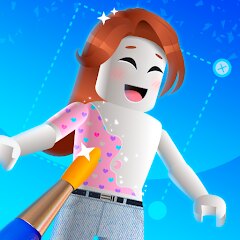
Makerblox - Create Skins
Lyrebird Studio
Updated
Oct 28, 2026
Category
Game
Installs
10M+
Rating
Updated
Oct 28, 2026
Category
Game
Developer
Lyrebird Studio
Installs
10M+
Rating
Game Screenshots
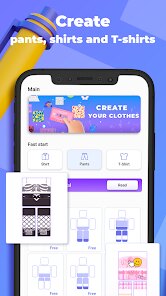
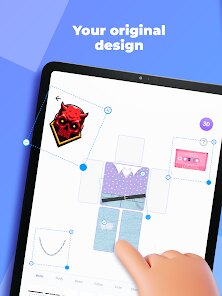
Game Overview
Skin Studio Fun
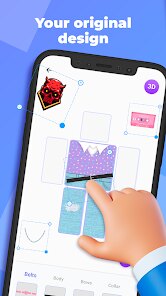
Makerblox - Create Skins is a playful skin editor where you can design custom block-style characters for your favorite worlds 😎. Mix colors, outfits, and small details to create avatars that feel completely one of a kind.
Creative Dress-Up Sandbox
From casual hoodies to shiny armor, mix and match pieces like a digital wardrobe. Try out different combinations freely, save multiple styles, and switch looks whenever you feel like it ✨.
Easy Tools for Everyone
Simple tap-and-drag controls make it easy for beginners, while layered editing options keep things interesting for advanced creators. No design skills needed—just creativity and a bit of free time 😉
Shareable Looks
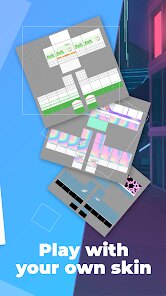
Save your skins to your device and use them in compatible block-style games, or share screenshots with friends. Turn your whole crew into themed characters—ninjas, astronauts, or anything you can imagine 🚀.
How to Get Started
Step 1: Getting Started
Step 2: Open Makerblox - Create Skins to access the main editor, where you can build new skins or edit existing ones. Follow the steps below to create your first standout avatar 🎮.
Step 3: Choose a Base Model
Step 4: Tap “New” or the start icon to begin. Select a base body type or template that fits your character idea, such as classic, slim, or themed styles.
Step 5: Customize Body Parts
Step 6: Pick each section of the body—head, torso, arms, and legs. Use the color tools or material settings to paint directly on the 3D model, or apply pre-made patterns.
Step 7: Add Clothes and Accessories
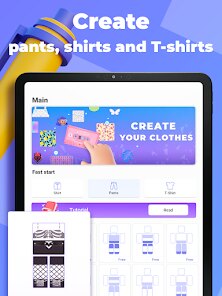
Step 8: Browse the wardrobe library for shirts, pants, shoes, masks, and more. Tap to preview items on your model, then tweak colors and shapes to match your design vision 😍.
Step 9: Zoom, Rotate, and Fine-Tune
Step 10: Swipe with one finger to rotate the model and pinch to zoom in. Use smaller brush sizes for precise details like eyes, logos, or stripes so everything looks clean from every angle.
Step 11: Save and Export the Skin
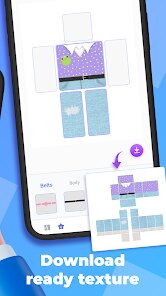
Step 12: Once you’re happy, tap save and name your skin. Use the export or download option to store the file in the correct format on your device.
Step 13: Use in Compatible Games
Step 14: Open your chosen block-style game and go to the skin or profile section. Import the saved file from Makerblox - Create Skins, confirm it, and jump into the game with your new look ✌️.
Download App
Star Ratings
More Games to Play


Disclaimer
Playcove is not affiliated with nor represents any developer, and is not the developer of any App or game.
Playcove solely collects and displays information from Google Play, including screenshots, historical version APK files, and download links.
All trademarks, registered trademarks, product names, company names, and logos appearing on this site are the property of their respective owners.
We guarantee the security of all APK files provided on our site and also provide official download links from Google Play and the App Store for your reference.