

Fish Eat Fish.io
Epic Plane Evolution
Spring Spear: Aim & Snap
Heartopia
Escalators
Love Tester - Find Real Love
Survivalcraft
Gangs Wars: Pixel Shooter RP
Weapon Master: Gun Shooter Run
Ride Master: Car Builder Game
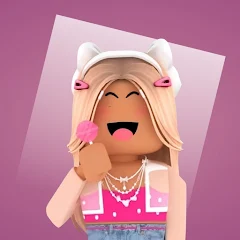
Skins For Roblox Clothes
Golden Universe
Updated
Oct 28, 2026
Category
Casual
Installs
10M+
Rating
Updated
Oct 28, 2026
Category
Casual
Developer
Golden Universe
Installs
10M+
Rating
Game Screenshots
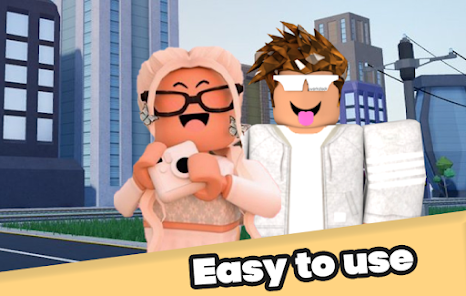
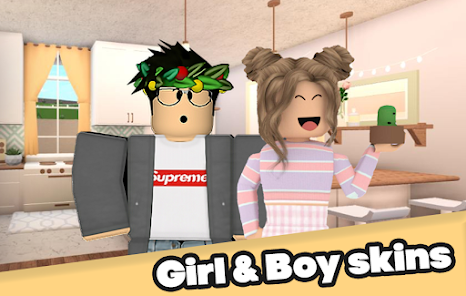
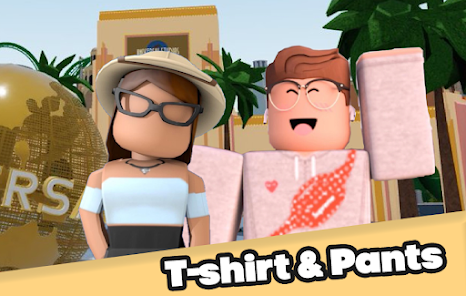
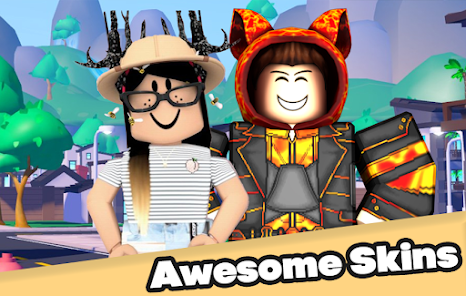
Game Overview
Dress-Up Playground 🎮
Skins For Roblox Clothes is a handy companion app that lets players browse tons of shirts, pants, and outfits for Roblox avatars ✨. Scroll through different styles, mix and match looks, and save favorites to build your own outfit collection.
Endless Style Options
From cute everyday outfits to trendy streetwear and fantasy costumes, the app offers a wide range of creative looks 👗🧢. It’s all about inspiration—preview outfits, discover ideas, and refresh your avatar style anytime you want.
Simple Browsing & Saving
Clear categories, fast search, and smooth previews make exploring easy and enjoyable 😌. With just a few taps, you can check outfits, save them to favorites, or use them as style inspiration.
Made for Fashion Fans
Perfect for players who love customizing and showing off unique styles 💃🕺. Try new combinations, compare looks with friends, and keep updating your fashion collection to match every mood and game.
How to Get Started
Step 1: Getting Started
Step 2: Open the app, browse outfits, and choose favorite shirts and pants as style inspiration. Use it as a visual guide while editing your Roblox avatar, switching between both apps when needed 😊.
Step 3: Launch the App
Step 4: Tap the Skins For Roblox Clothes icon and wait for the main gallery to load. Make sure you’re connected to the internet to access the full content and newest outfits.
Step 5: Browse Outfit Categories
Step 6: Swipe through sections like tops, pants, full outfits, or themed collections. Tap any item card to view a larger preview and explore additional style details and colors 🎨.
Step 7: Search or Apply Filters
Step 8: Enter keywords (such as “pink,” “anime,” or “sport”) in the search bar. Use filters to quickly find styles that match your mood or preferred game aesthetic.
Step 9: Open Outfit Details
Step 10: On the detail page, zoom in on images, check how pieces work together, and decide if you want to use it as inspiration. Scroll down to see similar recommendations and related styles.
Step 11: Save Favorite Styles
Step 12: Tap the heart ⭐ or favorite button to save outfits in your collection. Later, revisit your saved list to compare ideas and pick your next avatar look.
Step 13: Use as a Roblox Style Guide
Step 14: Open Roblox and go to the Avatar Editor, switching back and forth with Skins For Roblox Clothes. Match clothing pieces by style and theme, recreate the look, save your avatar, and show it off in-game 😎.
Download App
Star Ratings
More Games to Play

Disclaimer
Playcove is not affiliated with nor represents any developer, and is not the developer of any App or game.
Playcove solely collects and displays information from Google Play, including screenshots, historical version APK files, and download links.
All trademarks, registered trademarks, product names, company names, and logos appearing on this site are the property of their respective owners.
We guarantee the security of all APK files provided on our site and also provide official download links from Google Play and the App Store for your reference.